

WordPress Caching Explained
Complete Guide: How to Setup Cache for Beginners Your step-by-step guide to faster WordPress performance
1. Introduction: What Is Caching and Why Does It Matter?
Imagine walking into a library and asking for a popular book. The first visitor has to wait while the librarian retrieves it from the back storeroom. But if the librarian keeps that popular book on the front desk for the next visitor — they get it instantly. That is exactly what caching does for your WordPress website.
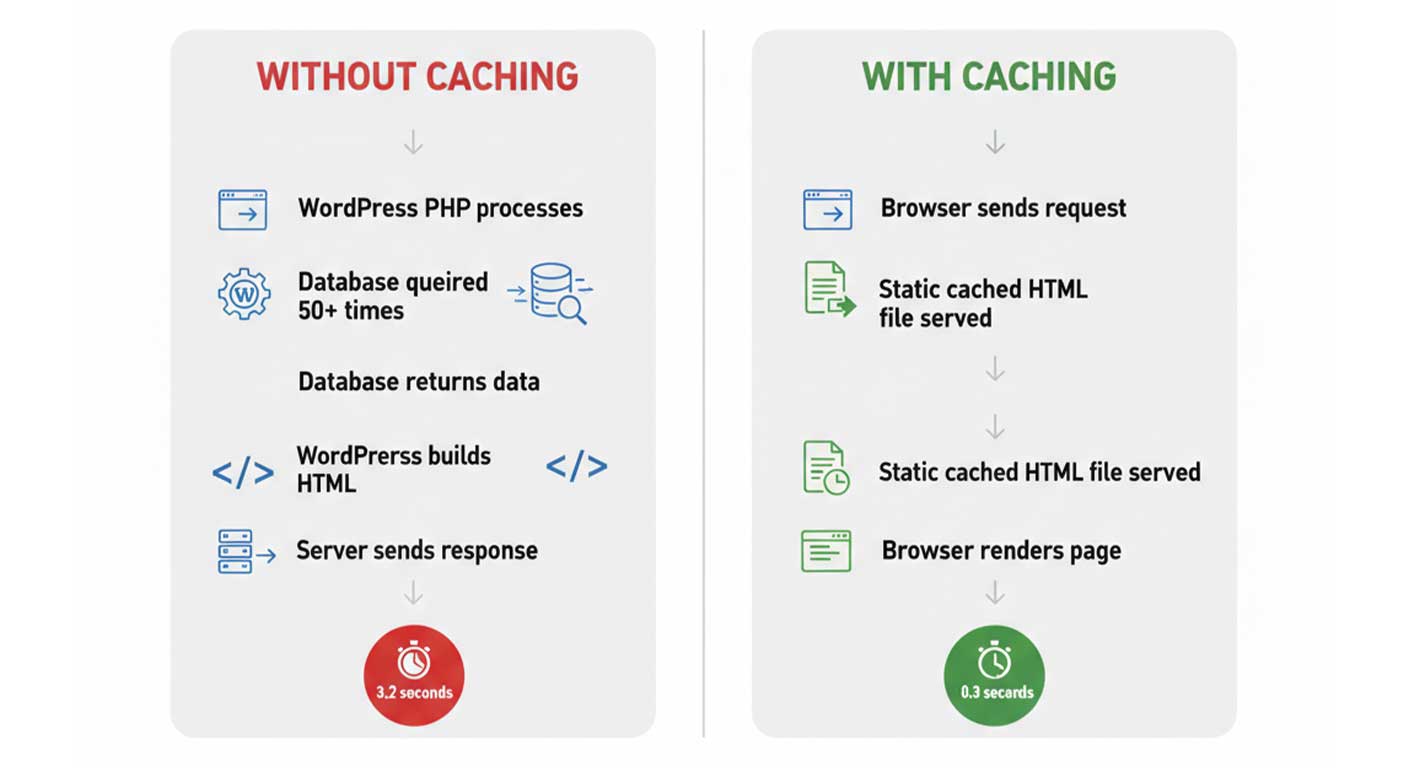
Without caching, every time a visitor lands on your website, WordPress has to go through a complex process: it queries the database, runs PHP code, builds the HTML page from scratch, and sends it to the visitor’s browser. This takes time — often 1–3 seconds or more on a busy server.
With caching, WordPress generates that page once and saves (or “caches”) a ready-to-serve version. The next visitor gets that pre-built page delivered almost instantly, without WordPress having to rebuild it from scratch.
WHY IT MATTERS: Google uses page speed as a ranking factor. A site that loads in under 2 seconds converts visitors far better than a slow one. Research shows that even a 1-second delay in load time can reduce conversions by 7%. Caching is one of the most impactful improvements you can make.
What Happens Without Caching?
Each visitor request triggers this chain reaction:
- Visitor’s browser sends a request to your server
- WordPress starts PHP processing
- WordPress queries the MySQL database (sometimes 50+ queries per page)
- Database returns results to WordPress
- WordPress assembles the HTML from templates and data
- Server sends the final HTML back to the browser
- Browser downloads CSS, JS, images, and renders the page
This process repeats for every single visitor, every single page view, every single time — even if absolutely nothing on the page has changed. Caching short-circuits this cycle and makes your site dramatically faster.
2. Types of Caching Explained Simply
There are several types of caching, each working at a different layer of your website. Understanding them will help you make smarter decisions when setting up your cache plugin.
️ Browser Caching
Browser caching tells a visitor’s web browser to save certain files — like your logo, CSS stylesheets, and JavaScript files — on their device. When they visit another page on your site (or return later), those saved files load instantly from their computer rather than being downloaded from your server again.
Simple Analogy: It’s like your browser “remembers” your website’s assets. Instead of re-downloading your logo every time someone browses your site, it’s already saved on their device.
Best for: Repeat visitors, static assets like images, CSS, JavaScript files
Set expiry to: 1 month for images and fonts, 1 week for CSS/JS
Page Caching
Page caching is the most important type for WordPress. When someone visits your homepage, WordPress builds the full HTML page and saves it as a static file. The next visitor gets that static file delivered directly — WordPress doesn’t even run. This is where you’ll see the biggest speed improvements.
Simple Analogy: It’s like printing a copy of a document instead of retyping it from scratch for every person who asks for it.
Best for: Blog posts, static pages, landing pages, homepage
Avoid for: Checkout pages, account pages, cart pages
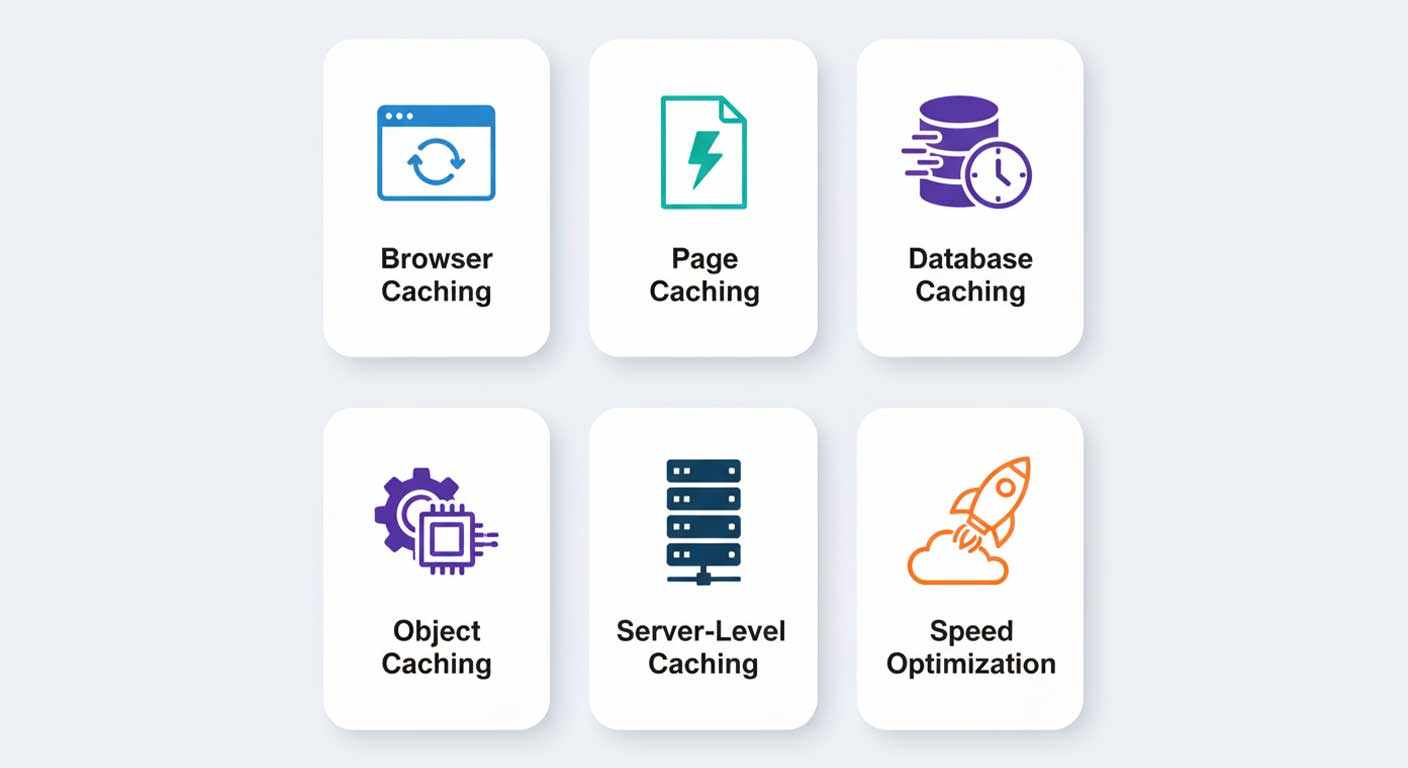
️ Database Caching
WordPress constantly queries its database to get content, settings, and user data. Database caching stores the results of common database queries so they don’t need to be run repeatedly. Instead of asking the database “what are the latest 5 posts?” a thousand times, WordPress asks once and caches the answer.
Simple Analogy: Instead of calling the librarian every time you want the same book, you write down the call number the first time and look it up yourself next time.
⚙️ Object Caching
WordPress has a built-in object cache that stores data from database queries temporarily in memory during a single page load. However, by default, this data is discarded as soon as the page finishes loading. Object caching (using tools like Redis or Memcached) makes this cache persist across page loads, dramatically reducing database pressure on high-traffic sites.
⚠️ Note: Object caching is most beneficial for high-traffic sites or those with complex, data-heavy pages. For smaller blogs, page caching alone is often sufficient.
Server-Level Caching (Nginx/Apache)
Server-level caching happens before WordPress even loads. Your web server (Nginx or Apache) can be configured to serve cached pages directly, without PHP processing at all. This is the fastest type of caching possible. LiteSpeed servers have this built in through LiteSpeed Cache.
☁️ CDN Caching (Edge Server Caching)
A Content Delivery Network (CDN) stores copies of your site’s static files (images, CSS, JS) on servers around the world. When a visitor in Tokyo accesses your US-hosted site, they get those files from a nearby CDN server in Asia rather than from your server in the US. This reduces distance-based latency dramatically.
Simple Analogy: Instead of one warehouse in New York shipping to everyone, a CDN is like having regional warehouses in every major city — deliveries are much faster because they come from nearby.
Popular CDN options: Cloudflare (free tier available), BunnyCDN, KeyCDN, and StackPath. Most cache plugins integrate with these directly.
3. Best WordPress Caching Plugins Compared
Choosing the right caching plugin is important. Here’s a straightforward breakdown of the most popular options, written for non-technical users.
WP Rocket — Premium, Easiest to Use
WP Rocket is widely considered the gold standard of WordPress caching plugins. It’s not free ($59/year for one site), but it works out of the box with almost no technical knowledge required. The moment you activate it, it starts caching your pages and applying dozens of optimizations automatically.
Best for: Business owners, bloggers, and anyone who wants the fastest results without technical headaches.
LiteSpeed Cache — Free and Powerful
LiteSpeed Cache is completely free and remarkably powerful — but it requires your hosting provider to run LiteSpeed web server software. Hosts like A2 Hosting, SiteGround, and Namecheap’s EasyWP use LiteSpeed. If your host uses Nginx or Apache, this plugin won’t give you its full benefits.
Best for: Users on LiteSpeed hosting who want premium performance without the premium price.
W3 Total Cache — Free, Feature-Rich, Complex
W3 Total Cache has been around for over a decade and supports nearly every caching method imaginable. However, its settings panel is notoriously complex — it’s easy to misconfigure something and break your site. Most beginners should avoid it unless they’re comfortable with technical settings.
Best for: Developers and technically advanced users who want granular control.
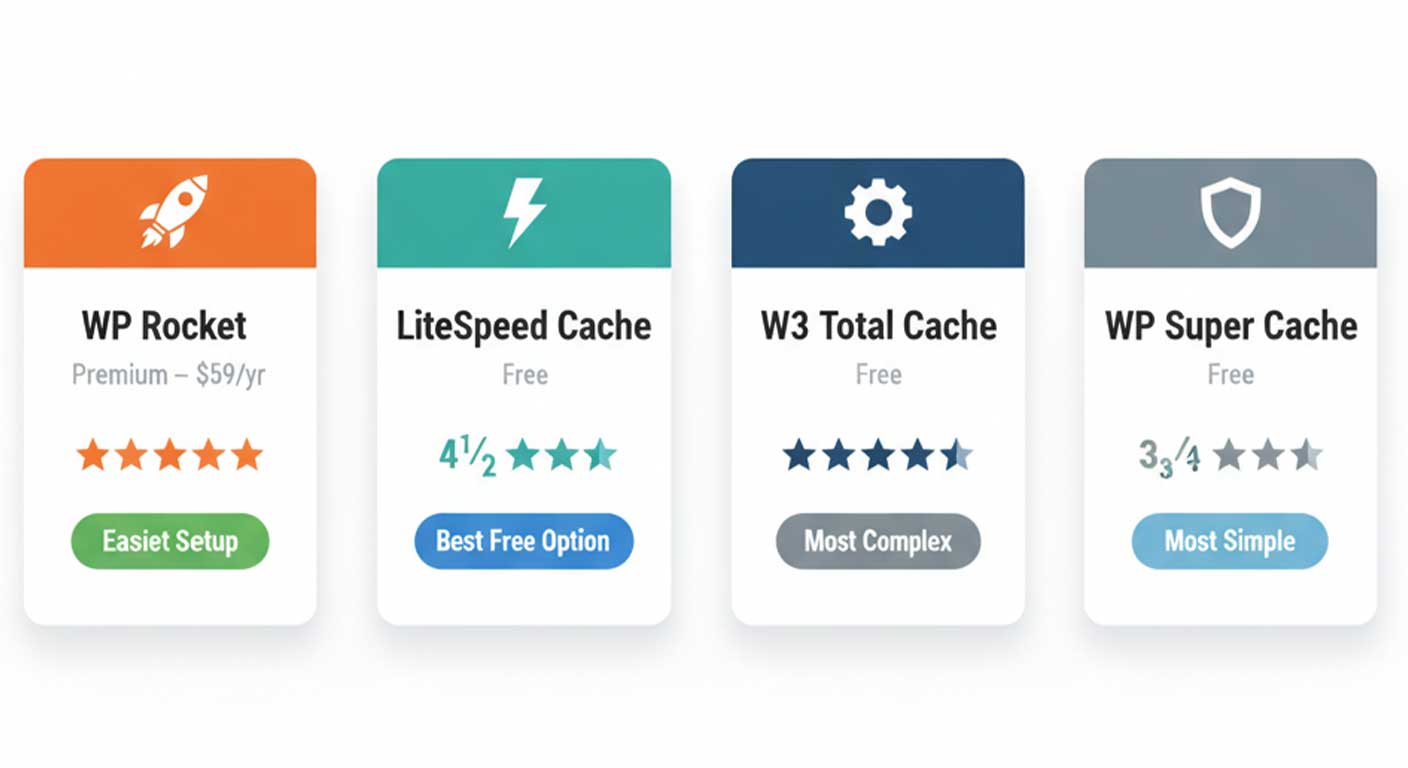
WP Super Cache — Free, Simple
WP Super Cache was built by Automattic (the company behind WordPress.com) and is one of the simplest caching plugins available. It focuses purely on page caching and is easy to configure. It lacks some modern optimization features, but it’s a solid, stable choice for simple blogs and informational sites.
Best for: Simple blogs and small sites that just need basic page caching without complexity.
Feature Comparison Table
| Feature | WP Rocket | LiteSpeed | W3 Total | WP Super | WP Fastest |
| Price | $59/yr | Free | Free | Free | Free/Paid |
| Page Caching | ✓ Yes | ✓ Yes | ✓ Yes | ✓ Yes | ✓ Yes |
| Browser Cache | ✓ Yes | ✓ Yes | ✓ Yes | ✓ Yes | ✓ Yes |
| CSS/JS Minify | ✓ Yes | ✓ Yes | ✓ Yes | ✓ Yes | ✓ Yes |
| Image Optimization | ✓ Yes | ✓ Yes | ✗ No | ✗ No | Partial |
| CDN Integration | ✓ Yes | ✓ Yes | ✓ Yes | ✓ Yes | Paid |
| Ease of Use | ★★★★★ | ★★★★☆ | ★★☆☆☆ | ★★★☆☆ | ★★★★☆ |
| Support | Premium | Forums | Forums | WordPress | Forums |
4. WP Rocket Setup Guide (Step-by-Step)
WP Rocket is the easiest cache plugin to set up, but there are still key settings to configure correctly. Follow these steps carefully.
Step 1: Purchase and Install WP Rocket
- Go to wp-rocket.me and purchase a license (Single Site plan for one website)
- After purchase, download the wp-rocket.zip file from your account area
- In your WordPress dashboard, go to Plugins → Add New → Upload Plugin
- Upload the zip file and click Install Now
- Click Activate Plugin
- Go to Settings → WP Rocket to enter your license key
✅ GOOD NEWS: WP Rocket starts working the moment you activate it. You’ll notice improvements even before changing any settings. But configuring it properly will unlock even better performance.
Step 2: Basic Cache Settings
Navigate to Settings → WP Rocket → Cache tab:
- Enable Cache for Mobile Devices — This ensures mobile visitors get cached pages too
- Enable Separate Cache Files for Mobile — Only check this if you have a separate mobile theme
- Cache Lifespan — Set to 10 hours for most sites. E-commerce sites should use 1–2 hours
- Leave ‘Cache for Logged-in Users’ disabled unless you have a membership site

Step 3: File Optimization (Advanced)
Go to the File Optimization tab. These settings minify and combine your CSS and JavaScript files.
⚠️ IMPORTANT WARNING: Enable minification settings one at a time, then test your site after each change. Minification can occasionally break JavaScript functionality if your theme or plugins use code that doesn’t handle minification well.
- Minify CSS Files — Enable this. It removes whitespace from CSS to reduce file size
- Combine CSS Files — Enable, but test thoroughly with your theme
- Minify JavaScript Files — Enable, then test your site’s interactive features
- Defer JavaScript Loading — Enable this to improve page rendering speed
- Delay JavaScript Execution — Useful for non-critical scripts; enable with care
Step 4: Media Optimization
Under the Media tab:
- Enable LazyLoad for Images — Images below the fold only load when scrolled to
- Enable LazyLoad for Iframes/Videos — Prevents YouTube embeds from slowing load time
- Enable WebP Compatibility — If your server generates WebP images
Step 5: Recommended Settings Summary
| Setting | Recommended Value |
| Cache for Mobile | Enable |
| Cache for Logged-in Users | Disable (usually) |
| Cache Lifespan | 10 hours |
| Minify CSS | Enable (test first) |
| Minify JavaScript | Enable (test first) |
| Defer JS Loading | Enable |
| LazyLoad Images | Enable |
| GZIP Compression | Enable |
| Browser Cache | Enable |
Step 6: Exclude Pages That Should NOT Be Cached
Go to Advanced Rules tab → Never Cache URLs and add these (one per line):
- /cart/
- /checkout/
- /my-account/
- /wp-login.php
- Any page with a contact form or dynamic content
5. LiteSpeed Cache Setup Guide
LiteSpeed Cache is a free plugin that integrates deeply with LiteSpeed web servers. Before installing it, you need to confirm your hosting uses LiteSpeed technology.
How to Check If Your Host Uses LiteSpeed
- Contact your hosting provider’s support and ask: “Does my hosting plan use LiteSpeed web server?”
- Or check your cPanel — look for ‘LiteSpeed Web Cache Manager’ in the tools section
- Popular hosts using LiteSpeed: A2 Hosting (Turbo plans), Namecheap EasyWP, Hostinger, DreamHost (some plans)
⚠️ IMPORTANT: If your host uses Apache or Nginx (most shared hosts), LiteSpeed Cache will still work for basic page caching, but you won’t get the full server-level performance benefits. In that case, WP Rocket or WP Super Cache may be a better choice.
Installation and Basic Configuration
- Go to Plugins → Add New in WordPress
- Search for “LiteSpeed Cache” and click Install Now, then Activate
- Go to LiteSpeed Cache → Dashboard
- Click the Save Changes button — LiteSpeed Cache will auto-detect your server environment
- Navigate to Cache → Cache Settings and enable: Enable Cache, Cache Logged-in Users (if needed), Cache Commenters
- Go to Page Optimization tab and enable CSS/JS Minification, Image Lazy Load, and Image Optimization (WebP)
- Clear any existing cache via LiteSpeed Cache → Manage → Purge All
LiteSpeed vs. WP Rocket: When to Use Which
Use LiteSpeed Cache if your host runs LiteSpeed servers AND you want a free, powerful solution with deep server integration. Use WP Rocket if you want the easiest setup experience, your host doesn’t use LiteSpeed, or you need premium support and guaranteed compatibility.
6. Caching Best Practices
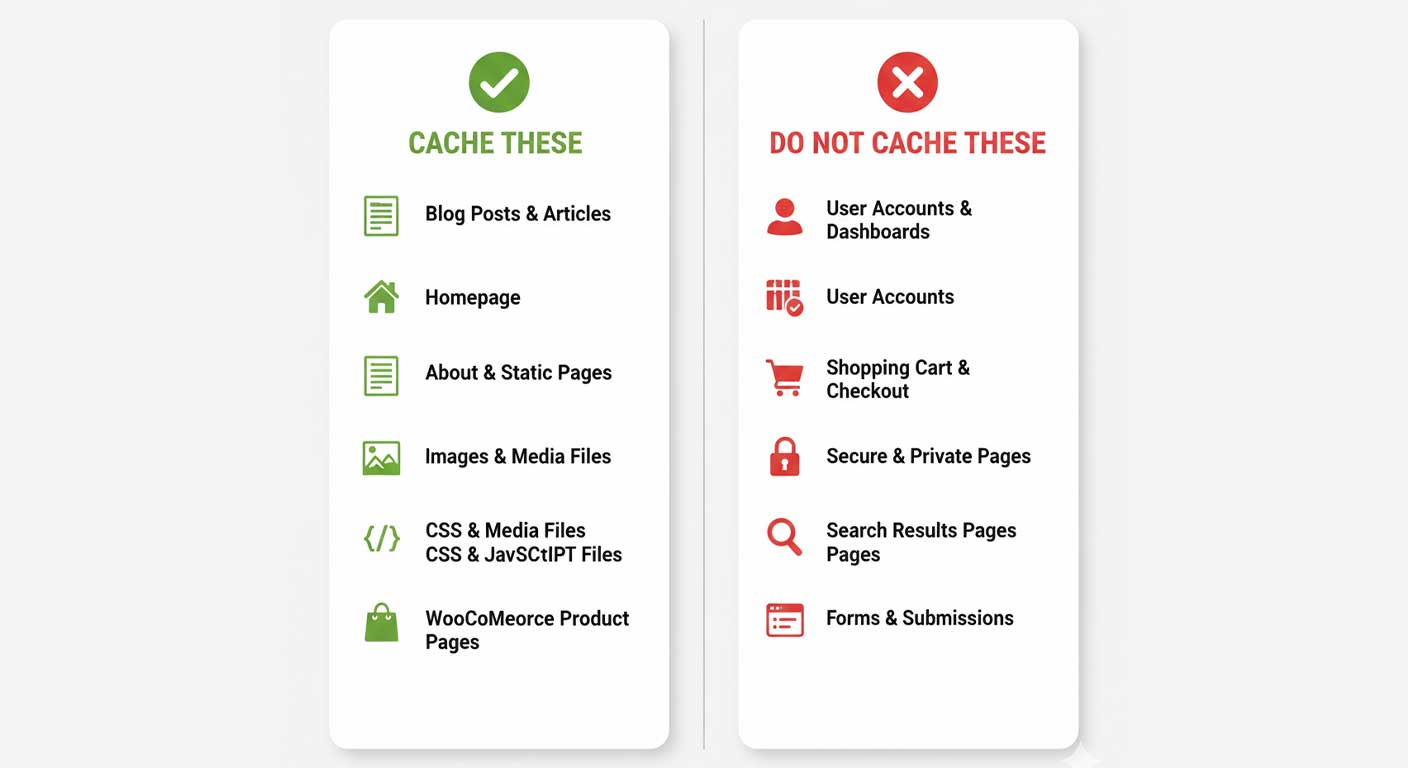
✅ What TO Cache
- Blog posts and articles (static content that rarely changes)
- Homepage and category/archive pages
- Static pages like About, Contact (the form itself may need exclusion), Services
- Images, CSS, JavaScript, and font files (browser cache)
- Product pages on WooCommerce (but NOT cart/checkout)
What NOT to Cache
Always exclude these pages and URLs from caching:
- Shopping cart page (/cart/)
- Checkout page (/checkout/)
- User account/profile pages (/my-account/)
- Thank you / order confirmation pages
- WordPress login page (/wp-login.php, /wp-admin)
- Pages with user-specific or real-time content
⏱️ Cache Expiration Settings
Cache expiration tells your server how long to keep a cached version of a page before rebuilding it. Here are recommended settings:
- Blog/news site: 10 hours — content changes daily, so refresh frequently
- Static business site: 24 hours — content rarely changes
- E-commerce product pages: 2–4 hours — prices and stock can change
- Homepage: 1–6 hours — often changed most frequently
- Browser cache for images and fonts: 1 month
- Browser cache for CSS/JS: 1 week (shorter so style updates reflect quickly)
How to Clear Cache Properly
Clearing cache is essential after making updates to your site. Here’s the right approach:
- Make your content or design changes
- Save your changes in WordPress
- Go to your cache plugin’s dashboard
- Click “Clear All Cache” or “Purge All” (exact button varies by plugin)
- Wait 30 seconds, then reload your site in a private/incognito browser window
- Check that your changes appear correctly
PRO TIP: Always test in an incognito/private browser window after clearing cache. Your regular browser window may still show cached files even after you’ve cleared server-side cache. Incognito mode starts with a fresh, uncached session.
Testing Your Cache After Setup
After setting up caching, verify it’s working correctly:
- Visit GTmetrix.com and enter your website URL
- Run a performance test and look for a score above 80 in both Performance and Structure
- Check that “Serve static assets with an efficient cache policy” shows as passed
- Use Google PageSpeed Insights (pagespeed.web.dev) to test both mobile and desktop scores
- Compare your before-and-after Time to First Byte (TTFB) — should be under 200ms with caching
7. Common Caching Problems & Solutions
Even when set up correctly, caching can occasionally cause confusing issues. Here are the most common problems and exactly how to fix them.
| Problem | Solution |
| Old content showing after update | Manually clear cache from plugin dashboard |
| Login page keeps logging you out | Exclude /wp-login.php and /wp-admin from cache |
| WooCommerce cart shows 0 items | Exclude cart, checkout, and account pages |
| Mobile site looks like desktop | Enable separate mobile cache |
| CSS/JS changes not showing | Purge browser cache and plugin cache |
| Admin bar missing for logged-in users | Disable cache for logged-in users |
Debugging Tip: The ‘Hard Refresh’
When troubleshooting display issues, try a hard refresh first:
- Windows/Linux: Press Ctrl + Shift + R or Ctrl + F5
- Mac: Press Cmd + Shift + R
- This forces your browser to ignore its local cache and download fresh files from the server
STILL HAVING ISSUES? If problems persist after clearing cache: temporarily deactivate your cache plugin, test if the issue disappears, then reactivate and look for conflicting settings. Most cache plugin issues stem from CSS/JS minification conflicts with specific themes or plugins.
8. Object Caching with Redis/Memcached
Object caching with Redis or Memcached takes your WordPress performance to an advanced level. While page caching serves pre-built HTML pages, object caching stores frequently-needed PHP data in ultra-fast server memory (RAM) so WordPress can retrieve it without hitting the database at all.
When Do You Need Object Caching?
Most small to medium WordPress sites will never need Redis or Memcached. But here are the signs that you might benefit:
- Your site receives thousands of visitors per day
- You’re running a WooCommerce store with many products and high traffic
- Your database queries are consistently high (visible in Query Monitor plugin)
- Your hosting plan supports Redis (many managed WordPress hosts do)
- You have a membership site where many users are logged in simultaneously
Redis vs. Memcached: What’s the Difference?
Both Redis and Memcached store data in server RAM for extremely fast retrieval, but Redis is more feature-rich and is the more commonly recommended choice for WordPress today. Redis can persist data across restarts and supports more complex data types. Memcached is simpler but still very fast for basic caching tasks.
How to Set Up Redis for WordPress
- First, check if your host supports Redis — contact support or check your hosting dashboard. Hosts like WP Engine, Kinsta, SiteGround, and Cloudways support Redis
- Enable Redis in your hosting control panel if available
- Install the “Redis Object Cache” plugin from the WordPress repository
- Activate the plugin and go to Settings → Redis
- Click “Enable Object Cache” — the plugin will connect to your server’s Redis instance automatically
- The status should show “Connected” with a green indicator
PERFORMANCE IMPACT: Sites running Redis object caching typically see database query reductions of 40–80% and TTFB improvements of 100–300ms. For high-traffic sites, this translates to a dramatically smoother user experience and lower server resource consumption.
Does Redis Replace Page Caching?
No — Redis and page caching work together. Page caching serves complete HTML pages without running WordPress at all. Redis speeds up WordPress when it does run (for logged-in users, uncached pages, etc.). For maximum performance, use both: a page cache plugin (like WP Rocket) and Redis object caching.
9. Conclusion & Next Steps
Setting up WordPress caching might sound intimidating, but as you’ve seen in this guide, the core concepts are straightforward. You don’t need to understand PHP or server configuration to dramatically improve your site’s speed — you just need the right plugin and the right settings.
Here’s a quick summary of what to do:
- Start with WP Rocket if budget allows — it’s the fastest path to a well-optimized WordPress site
- Use LiteSpeed Cache if you’re on a LiteSpeed-powered host and want a free, powerful solution
- Always exclude cart, checkout, and account pages from caching
- Enable lazy loading for images and defer JavaScript loading
- Test your site after every change using GTmetrix or Google PageSpeed Insights
- Clear your cache after every content or design update
- Consider Redis object caching if you run a high-traffic site or WooCommerce store
Ready to Speed Up Your WordPress Site?
Start with a performance baseline — run your site through GTmetrix.com right now before making any changes. Record your scores, then set up WP Rocket or LiteSpeed Cache using this guide, and test again. Most sites see a 40–70% improvement in load times after proper caching setup.
A faster site means happier visitors, better SEO rankings, and more conversions. Your caching setup is an investment that pays back immediately.
️ Need Help? Let WpSpeedFixer Do It For You!
Setting up caching correctly takes time, and a single misconfiguration can slow your site down or break it entirely. If you’d rather skip the technical setup and get guaranteed results, WpSpeedFixer is here to help. We specialize in WordPress speed optimization — from caching and minification to server tuning and Core Web Vitals improvements. We’ll make your website load fast and perform at its very best, so you can focus on running your business.
Get in touch: [email protected] — we’d love to hear about your site and show you what’s possible.